

Microsoft Flight Simulator 2020: How the New PC Simulator Recreates a World

Microsoft Flight Simulator returned on August 18, 2020, with a new PC release developed by Asobo Studio and published by Xbox Game Studios. The simulator combines aircraft systems, terrain data, weather and an online world model to give players a remarkably broad space to explore.
At launch it was available for Windows 10 PC through the Microsoft Store and Steam, and the standard edition was included in Xbox Game Pass for PC Beta. The launch announcement described plans for further updates. Features discussed as future work, including virtual reality, should be treated as plans rather than capabilities already available on launch day.
Flight Simulator is both a game and a simulation platform. Someone may fly visually over a familiar city, practice navigation with a small aircraft or learn the procedures involved in a longer trip. The experience can be rewarding at different levels of complexity, but expectations about hardware, connectivity and realism matter.
A world built from multiple sources
The simulator’s world combines geographic data, imagery and procedural techniques. Microsoft describes using Bing Maps and cloud technology to help represent a large amount of terrain and surface information. The goal is a planet-scale environment that can be explored from the air, not a hand-modeled replica of every building and tree.
That distinction is useful when interpreting screenshots. A location may look striking from altitude while a particular building, bridge or landmark differs from reality at close range. Data quality varies by region, and automated reconstruction can produce recognizable landscapes alongside unusual details.
Handcrafted airports and other carefully modeled locations sit alongside a much larger set of represented places. The selection included depends on the edition. A player comparing packages should check the aircraft and airport lists rather than assuming the base edition and premium editions contain identical content.
Aircraft, weather and flight models
A convincing flight requires more than scenery. Aircraft respond to lift, drag, power, weight and the surrounding air. The simulator models these interactions to give different aircraft distinct handling characteristics, while providing assistance settings that let beginners start without mastering every procedure.
Weather changes the context of a flight. Wind can affect takeoff, landing and navigation; clouds and visibility influence what a pilot can see. Weather data and simulation settings may also change the experience. A flight in clear conditions is not equivalent to flying the same route in strong crosswinds.
Aircraft systems and avionics add another layer. Some players prefer to learn the basics of navigation and engine management, while others want a highly detailed recreation of a specific cockpit. The level of fidelity can differ between aircraft, so an appealing exterior is not a guarantee that every switch or procedure behaves exactly like its real-world counterpart.
A desktop simulator is a learning and entertainment tool. It can help develop familiarity with concepts, but it is not a substitute for instruction, certified training devices or the judgment required to operate an actual aircraft.

Choosing an edition
The 2020 release arrived in Standard, Deluxe and Premium Deluxe editions. Each provides the core simulator, while the higher editions add selected aircraft and handcrafted airports. The right choice depends on whether those specific additions are worth the price to you.
Start by identifying the type of flying you want to do. A person interested primarily in short trips in a light aircraft may find the standard selection sufficient. Someone who wants a particular included airport or aircraft should check the official edition comparison and the store’s current terms before buying.
Do not assume that a premium edition makes every aspect of the simulator more realistic. The additions are principally content choices; the same broad questions about hardware, connectivity, aircraft detail and personal preferences remain.
PC requirements and storage
Flight Simulator places significant demands on a computer because it renders detailed scenery, aircraft and weather across a large environment. Processor, graphics card, memory and storage all matter. The balance between them changes with resolution, detail settings, location and the complexity of the aircraft being flown.
Published minimum specifications are a starting point, not a promise that every combination of settings will run smoothly. A system that can launch the simulator at a modest resolution may struggle at higher detail or in a dense metropolitan area. Equally, a high-end graphics card cannot compensate for every processor, storage or bandwidth constraint.
Allow room for the initial installation and future updates. An update may require temporary space as well as the final installed size. A fast solid-state drive can improve loading and data access compared with a slower drive, but it does not solve every performance problem.
Find a stable configuration
Begin with a sensible preset for the machine, then change one or two settings at a time. Test the same airport, aircraft and weather conditions when comparing changes. A short flight over open terrain tells you less about a system’s behavior near a busy airport with dense scenery.
Frame rate is only part of the experience. Stutters, long loading times, input latency and inconsistent frame pacing can be more distracting than a steady lower frame rate. For a flight simulator, predictable control response and readable instruments may be more valuable than every visual option set to its maximum.

Online data and offline choices
Streaming makes it possible to incorporate more geographic information than most players would want to store locally. It also means that the appearance of scenery can depend on connection speed, service availability and the data available for a particular place.
Players with limited data allowances should review the simulator’s data settings and their internet plan before extensive use. Downloading updates and streaming scenery are different sources of traffic. An attractive demonstration recorded with a fast connection does not establish how the same location will appear on every network.
Caching and offline options can reduce dependence on a live connection in certain circumstances, but available detail and storage requirements vary. Check the settings and documentation for the version in use; do not assume that every online feature remains available without a connection.
Connectivity shapes other kinds of gaming too. Our earlier look at the Stadia gaming package explored a different model in which the game itself is streamed; Flight Simulator’s scenery streaming should not be confused with running the whole PC game remotely.
Controls: keyboard, controller or flight hardware?
It is possible to begin with familiar PC inputs or a compatible controller. A dedicated joystick, yoke, throttle or rudder pedals can make certain movements feel more intuitive, but additional equipment is not required to decide whether the simulator interests you.
Before buying hardware, consider where it will sit, how it connects, whether the controls can be mapped to the functions you need and how much desk space remains for a keyboard. Reviews and compatibility lists can help, but software updates and device revisions may change the experience.
Whatever the hardware, spend time calibrating it. A control that moves too sharply around its center or does not reach its full range can make an aircraft difficult to handle. Adjust sensitivity, verify the axes and practice in a simple aircraft before changing several variables at once.

A first flight that teaches useful habits
Choose a light aircraft, a familiar airport and clear weather. Use the available tutorials and assistance settings to understand the basic controls. Then try a short circuit: take off, climb, turn onto a safe course and return for landing. It is more useful to repeat a simple flight than to attempt a complex airliner procedure immediately and wonder which of many inputs went wrong.
Plan the route before departure. Note the runway direction, nearby terrain, expected weather and the destination. Learn what the primary flight instruments show, then compare them with the view outside. A map or navigation aid is useful, but it should complement an understanding of aircraft position and performance.
Change one challenge at a time. Add wind after a calm-weather landing feels manageable; try a longer route after basic turns and altitude control are comfortable. The simulator can make exploration approachable without requiring every player to follow the same training path.
Build a repeatable practice routine
Pick one maneuver and set a modest objective. For a landing, that could mean maintaining a steady approach speed and keeping the runway aligned in the windscreen. Repeat the approach under similar conditions, then review what changed. If every attempt uses a different airport, aircraft and weather setting, it is harder to identify the reason for improvement or difficulty.
Use checklists as prompts for attention, not as decoration. A basic preflight routine might include checking the controls, fuel, instruments, route and weather settings. In the simulator, a missed step can usually be corrected by restarting; the lesson is to develop a consistent sequence and understand what each check is for.
Assistance settings are also useful learning tools. Start with enough help to keep the experience manageable, then reduce assistance as you understand each task. There is no single “correct” way to enjoy a simulator: the useful setting is the one that supports your purpose and makes the limitations clear.
Weather, navigation and the map
Planning a route involves more than choosing two points on a screen. Terrain, airspace, distance, aircraft performance and weather can all influence a real flight. In a home simulator, a simplified plan can still help a player understand why a route that looks short on a map may be demanding in practice.
For a visual flight, identify landmarks and compare them with the aircraft’s position. For a more instrument-focused trip, learn how the selected navigation equipment presents course and position information. Avoid assuming that every aircraft has the same avionics or that a real-world procedure is implemented in exactly the same way in the simulation.
When live weather is selected, the simulated conditions depend on the data and systems available to the application. They should not be treated as an operational weather briefing for an actual flight. In any case, the simulator gives players a safe place to observe how a change in wind, visibility or cloud cover changes the workload of a virtual approach.

Understanding updates and third-party content
A large simulator is an evolving software platform. Its installer, core application, streamed data and optional packages can have different update paths. Before troubleshooting, check which component changed and read the official release information for the version you are using.
Adding several community packages at once makes it harder to identify an incompatibility. A practical approach is to keep a list of installed add-ons and introduce changes gradually. If a problem appears, test the base configuration first and then reintroduce optional content one item at a time.
Purchases deserve the same care. Confirm which edition and platform a package supports, whether it is provided through an official marketplace or another seller, and what support or refund terms apply. A product page is a description of what a developer intends to provide; independent testing and user experience may reveal different results on a particular system.
Multiplayer and the community
Flying alongside other players can make a virtual trip more social. Multiplayer options and online services also introduce settings that affect which traffic and weather a participant sees. A group planning a shared flight should check those settings and decide how it will communicate before departure.
The flight-simulation community has a long history of creating aircraft, scenery and tools. Microsoft said a software development kit was available at launch and that it was working with third-party developers. The quality, support and compatibility of individual add-ons will nevertheless vary.
Download add-ons from sources you trust, read installation instructions and keep track of what has been installed. If the simulator becomes unstable after an update, a third-party add-on can be one possible cause. Test changes methodically instead of assuming that every issue comes from the base simulator.
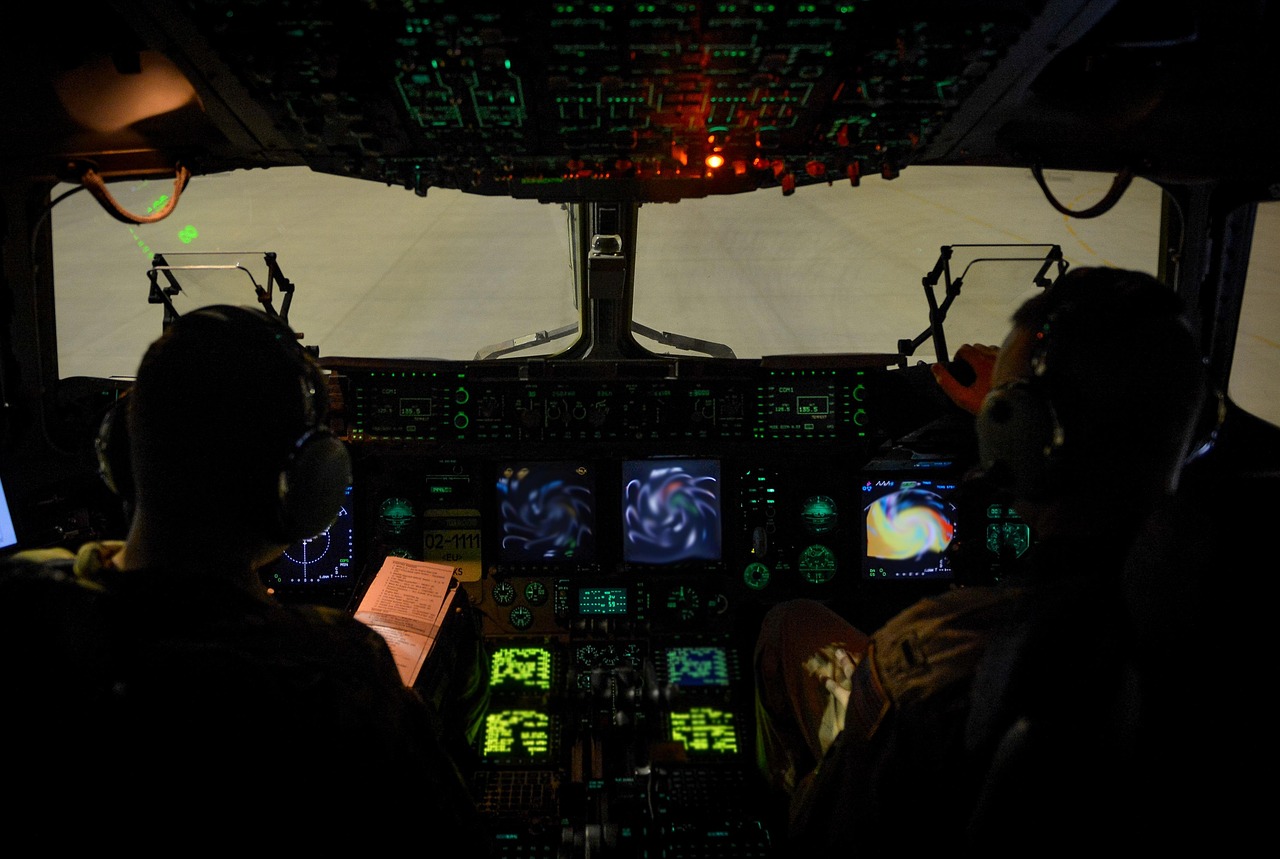
What the simulator does well—and where to be cautious
The strongest attraction is the combination of scale and accessibility. A player can explore an enormous range of locations, experiment with conditions and return to the same route to improve a skill. The sense of place can be particularly compelling when terrain, light and weather align.
The limitations are equally important. Scenery can contain data errors, performance depends on the whole PC and network, and aircraft systems vary in depth. Real aviation involves physical sensations, risk management, airspace rules and decision-making that a home setup cannot fully reproduce.
Those limitations need not diminish the experience. They simply help set useful expectations. Decide whether you want sightseeing, an introduction to flying concepts or a more procedure-focused hobby, and choose settings and equipment that serve that goal.